
Open images in napari#
There are multiple ways to open images in napari, depending on the image format and the type of processing you intend to apply to the data. The simplest option is to use napari’s builtin file dialog or drag-and-drop functionality. To open certain specialized data types, such as images saved in custom microscopy formats, you may need to extend napari’s data-loading capabilities by using a specific type of napari plugin called reader plugins. Finally, for maximum flexibility, images can also be opened programmatically, for example via the napari console or in a Jupyter notebook.
Sample images#
Sometimes you just need to open images to test some functionality of napari or
a plugin. In that case you can use sample images that come bundled with napari
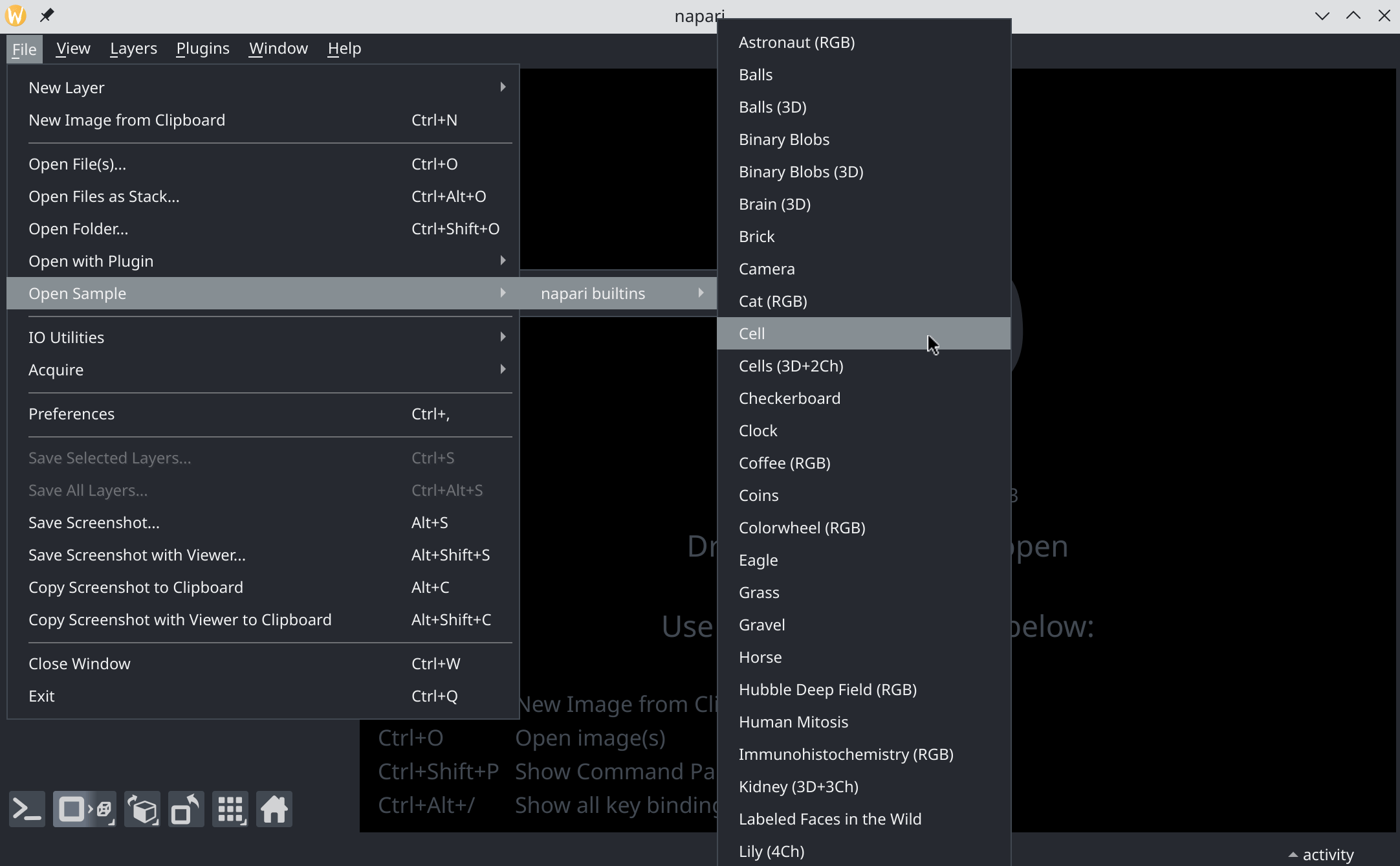
or some plugins. Here is an example of opening the “cell” sample image. In
napari, go to File -> Open Sample -> napari builtins -> Cell
Available built-in sample images#
Many samples come from the scikit-image example images available in
skimage.data
which you can read to learn more about the images, including source and
copyright status.
Sample image |
Notes |
|---|---|
Astronaut (RGB) |
Color photograph of an astronaut. |
Balls |
2D synthetic pattern of filled circles. |
Balls (3D) |
3D synthetic volume of spheres. |
Binary Blobs |
2D synthetic binary blob image. |
Binary Blobs (3D) |
3D synthetic binary blob volume. |
Brick |
Grayscale photograph of a brick wall texture. |
Brain (3D) |
3D MRI brain volume. |
Camera |
Grayscale “cameraman” test image. |
Cat (RGB) |
Color photograph of a cat. |
Cell |
Grayscale microscopy image of a single cell. |
Cells (3D+2Ch) |
3D fluorescence image with two channels. |
Checkerboard |
Synthetic checkerboard target pattern. |
Clock |
Photograph of a motion blurred wall clock. |
Coffee (RGB) |
Color photograph of a cup of coffee. |
Coins |
Grayscale photograph of several coins. |
Colorwheel (RGB) |
Color-wheel test image. |
Eagle |
Grayscale photograph of an eagle. |
Grass |
Photograph of a grass texture. |
Gravel |
Photograph of a gravel texture. |
Heat diffusion (4D) |
4D synthetic heat-diffusion volume (time + 3D). |
Horse |
Silhouette image of a horse. |
Hubble Deep Field (RGB) |
Deep-field astronomy image. |
Human Mitosis |
Microscopy image of dividing cells. |
Immunohistochemistry (RGB) |
Immunohistochemistry-stained tissue image. |
Kidney (3D+3Ch) |
3D kidney tissue data with three channels. |
Labeled Faces in the Wild |
Subset of the LFW face dataset. |
Lily (4Ch) |
4-channel fluorescence image of a lily. |
Microaneurysms |
Retinal image showing microaneurysms. |
Moon |
Grayscale photograph of the moon. |
Page |
Grayscale image of a printed text page. |
Retina (RGB) |
Color retinal fundus image. |
Rocket (RGB) |
Color photograph of a rocket launch. |
Shepp Logan Phantom |
Synthetic medical imaging phantom. |
Skin (RGB) |
Color microscopy image of skin tissue. |
Text |
Grayscale image containing handwritten text. |
Builtin napari reader#
napari natively supports TIFF and many other standard formats like PNG, JPG
etc. When drag-and-dropping files, using one of the File -> Open File/Folder
menu options, or using the File -> Open Sample menu with such formats, images
will be read via the imageio
library and appear in the viewer.
For example you can try with with your own images or by downloading this TIFF file (CC0, Clark et al. (2022). BioStudies, S-BIAD582. Retrieved from https://www.ebi.ac.uk/biostudies/bioimages/studies/S-BIAD582) and opening it in napari via drag-and-drop or the file dialog:

As can be seen above, the builtin reader correctly interpreted the data to be
multi-dimensional by adding a slider, allowing you to scroll through the data.
This dataset is composed of three channels and you may prefer that those be
shown as separate napari layers. However, the default reader is not capable of
reading enough metadata to know this, so it just considers “channels” as an
additional dimension. This can be fixed by splitting the layer (right-click on
layer and Split Stack):

As mentioned above, there are situations where the builtin reader will not be
sufficient. For example, imageio typically does not support custom
commercial/proprietary formats such as those used in microscopy (e.g. CZI, LIF,
ND2) or remote sensing (e.g. ENVI). In these cases, napari’s reading
capabilities need to be extended using an appropriate reader plugin.
Using a plugin reader#
Readers are a specific feature of napari plugins making it possible to open
additional file formats via the File -> Open menu or drag-and-drop. They are
installed in the same way as other napari plugins, either using the Plugins
menu or your preferred Python package installer. Read more in our
guide to finding and installing plugins. Once
installed, plugins will be automatically discovered by napari and used for the
appropriate files.
There are two possibilities for reader plugins: they can either be specialized in reading one single file format, or they can be more generic and bundle multiple readers. Using a generic reader plugin has the advantage of reducing the number of plugins and ensuring homogeneous behavior across formats. However, specialized readers may provide more advanced features for a given format.
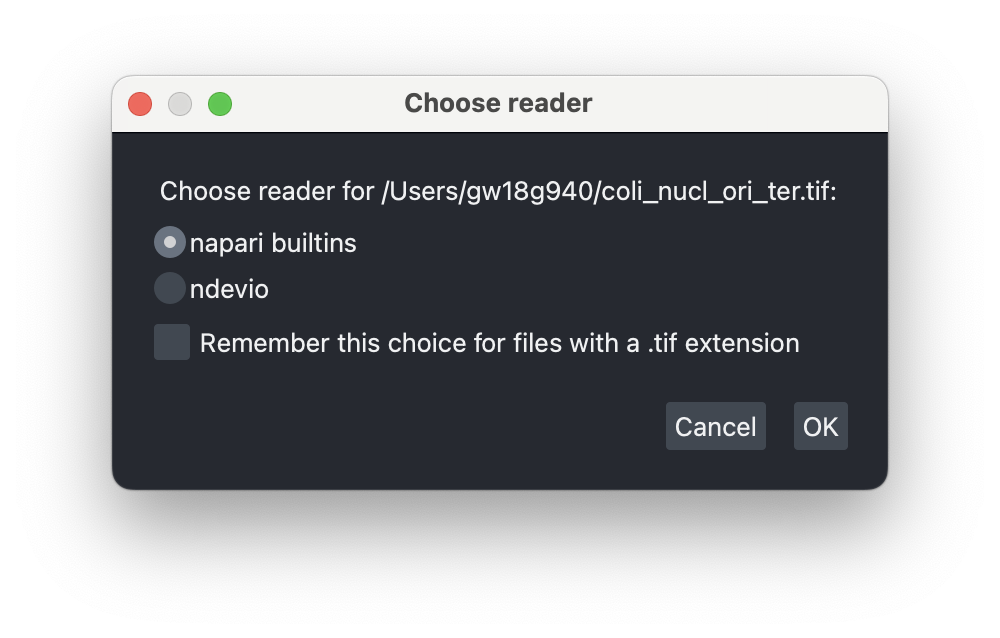
If multiple readers are available for a given format, when drag-and-dropping a
file, or opening an image via the menu File -> Open you will be prompted to
select which plugin to use. If you have set a default you can also adjust it in
Preferences -> Plugins -> File Readers by entering the desired extension and
selecting the preferred plugin from the dropdown.
Single format reader#
Some specific file formats have dedicated reader plugins. Here, we use the
example of mesh formats that can be visualized in the surface layer. The
napari-meshio plugin
provides a reader to open a mesh file such as this
example ply file.
The plugin can be installed using the napari plugin manager or your preferred
Python package manager.

General-purpose reader plugins#
There are a few examples of plugins bundling multiple readers. One example is ndevio which wraps the family of bioio packages to provide support for multiple microscopy file formats. Often such bundled reader plugins come with a set of formats supported by default, and allow the users to add optional formats, typically by installing additional dependencies.
In the example below we illustrate how to use ndevio to open a zarr file. Again, we need to install ndevio with either the napari plugin manager or your preferred Python package manager.
This basic installation allows to open ome-tiff, ome-zarr, imageio etc. via the plugin. If you need to open another format such as CZI, ND2 etc., you will have to install additional extensions (for example for ndevio please refer to the instructions). This can be done for example via the direct entry option of the plugin manager.
We are now able to just drag and drop a zarr file in the viewer to open it. We use an example from the IDR OME-NGFF Samples (13457537.zarr, CC BY 4.0, Payne et al. (2019) https://doi.org/10.1126/science.aay3446):

Using the napari console to open an image#
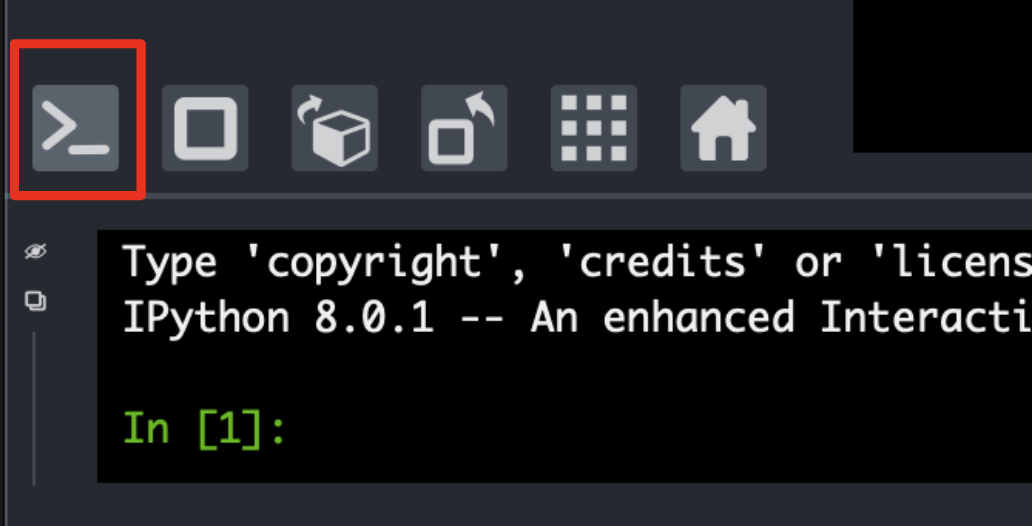
There are a few cases, where it is necessary to resort to some coding in the console (or notebook) to open an image. You can find the console in the bottom panel of napari:
First, there might be no plugin reader for your format, but only a library to read the data as arrays. In such a case, the images need to be first read as arrays and then added to the viewer. Second, there might be a reader plugin for your format, but the metadata could be missing or badly interpreted, leading to an incorrect loading of the data. In such cases, the data may also need to be read programmatically and added to the viewer after reshaping/pre-processing. In the following example, opening a multi-dimensional tiff file leads to loading the channels as a dimension (first dimension of size 3), instead of being assigned to separate layers:
# Open the downloaded data with dimensions CZYX
viewer.open(file_path_tiff2)

# Switch to viewing the first channel
viewer.dims.set_point(0, 0)

Instead we can now first read the data for example with imageio, and add it
to the viewer while specifying which axis of the array should be split into
individual layers, using the channel_axis argument:
image = iio.imread(file_path_tiff2)
print(f'image dimensions: {image.shape}')
image dimensions: (3, 30, 220, 169)
viewer = napari.Viewer()
viewer.add_image(image, channel_axis=0);

Note that different reader plugins might interpret your data in different ways.
With the same data as above where the builtin imageio reader did not split
the channels into layers, the ndevio plugin identified the channels from the
metadata and assigned them separate layers:
Attempted file (/home/runner/Desktop/napari-docs-build/coli_nucl_ori_ter.tif) load with reader: <class 'bioio_ome_tiff.reader.Reader'> failed with error: bioio-ome-tiff does not support the image: '/home/runner/Desktop/napari-docs-build/coli_nucl_ori_ter.tif'. Failed to parse XML for the provided file. Error: not well-formed (invalid token): line 1, column 0

Using plugins to improve image display#
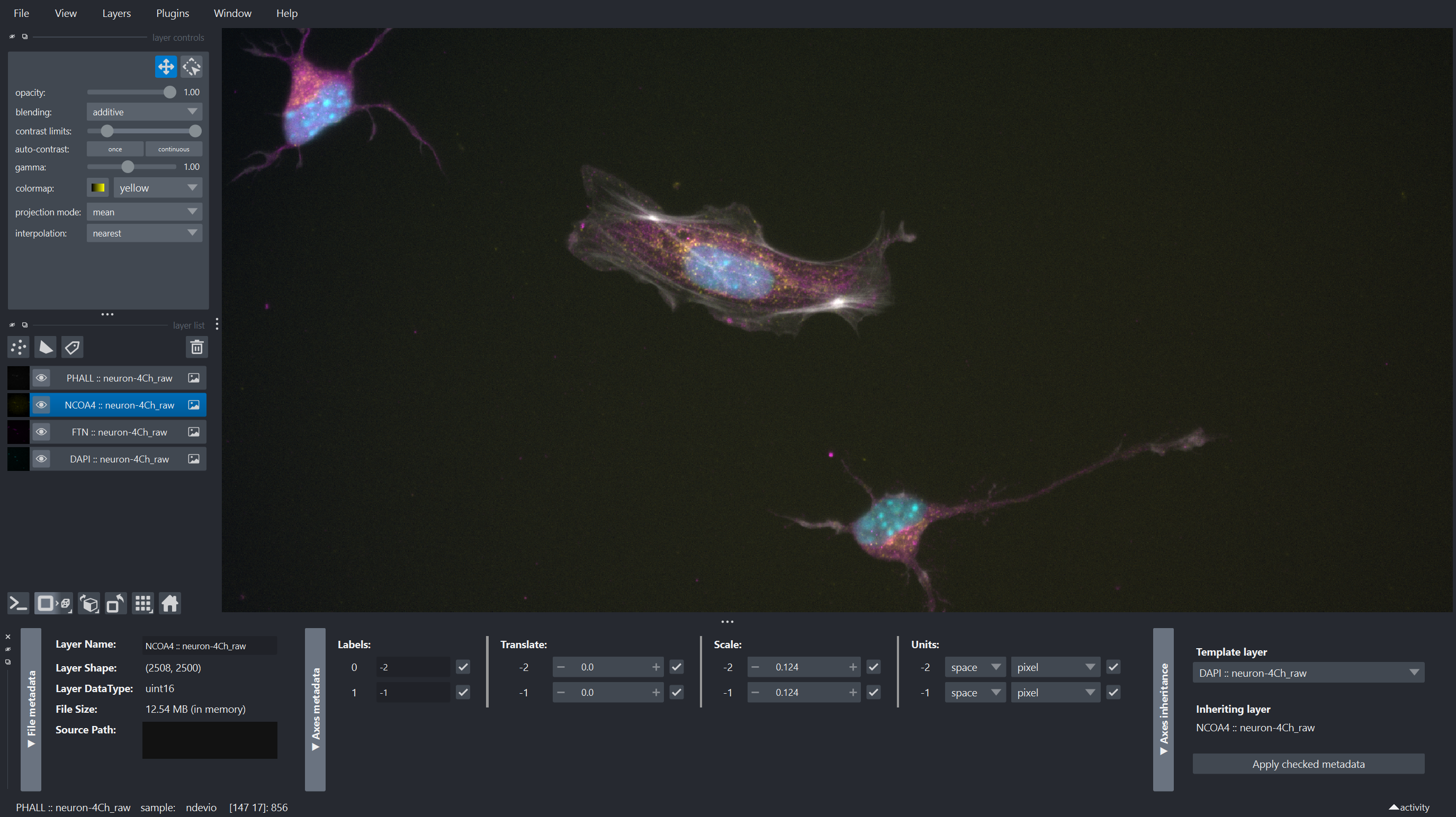
With the release of napari 0.7.0,
napari-metadata is included with the
bundle, conda-forge and with pip install "napari[optional]" (or
napari[all]) installations. This plugin provides a widget to view and edit
the metadata of layers. This can be useful to check if the metadata was
correctly read, and to edit it if necessary.
In the case of badly interpreted dimensions, one can also reshape the data
using certain plugins. For example the
napari-skimage plugin
provides a tool to reshape layers via the
Plugins -> napari skimage -> Axis operations menu. Here we use the
swap axes function to exchange the X and Y axes:
